1
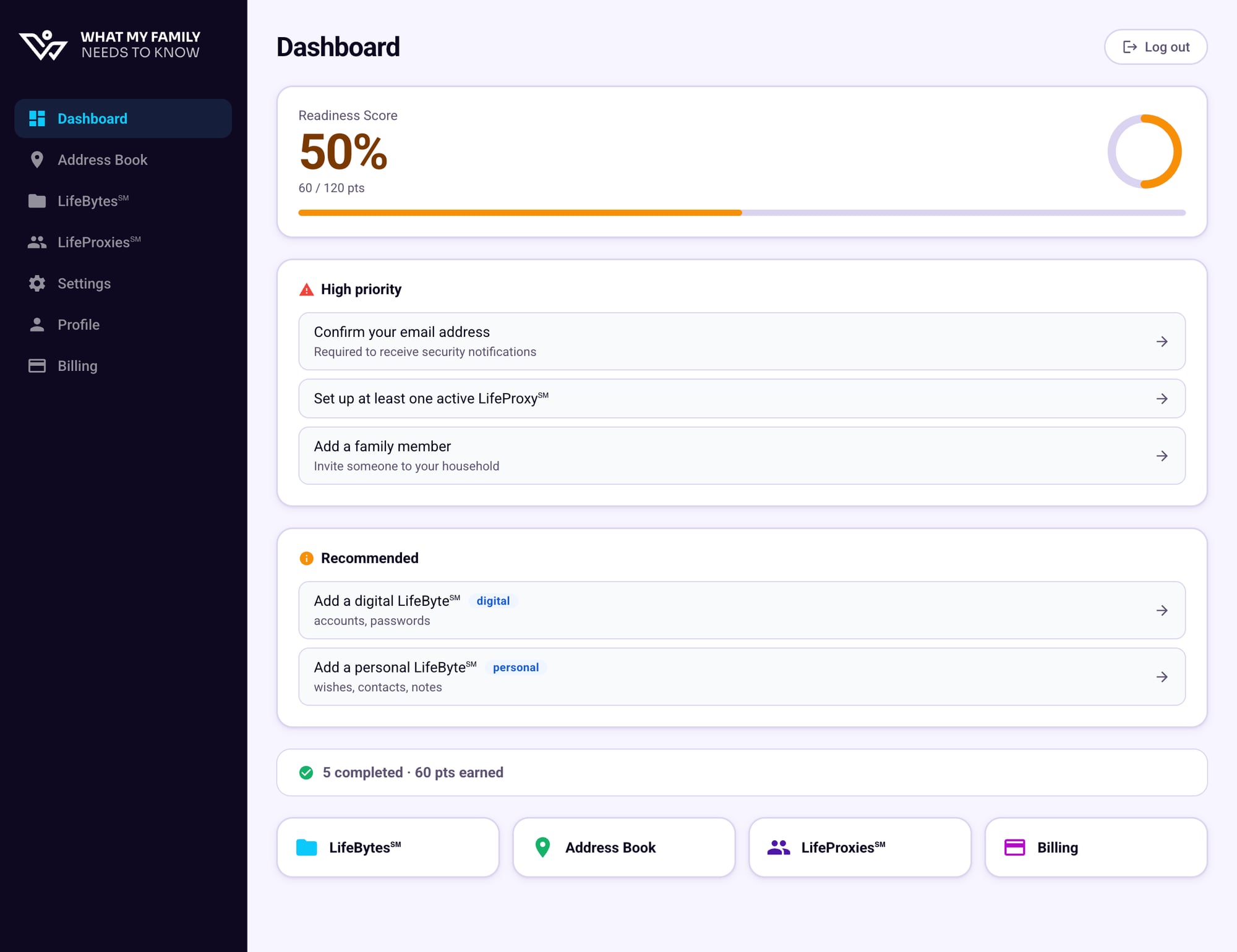
Go to LifeBytes℠ in the sidebar
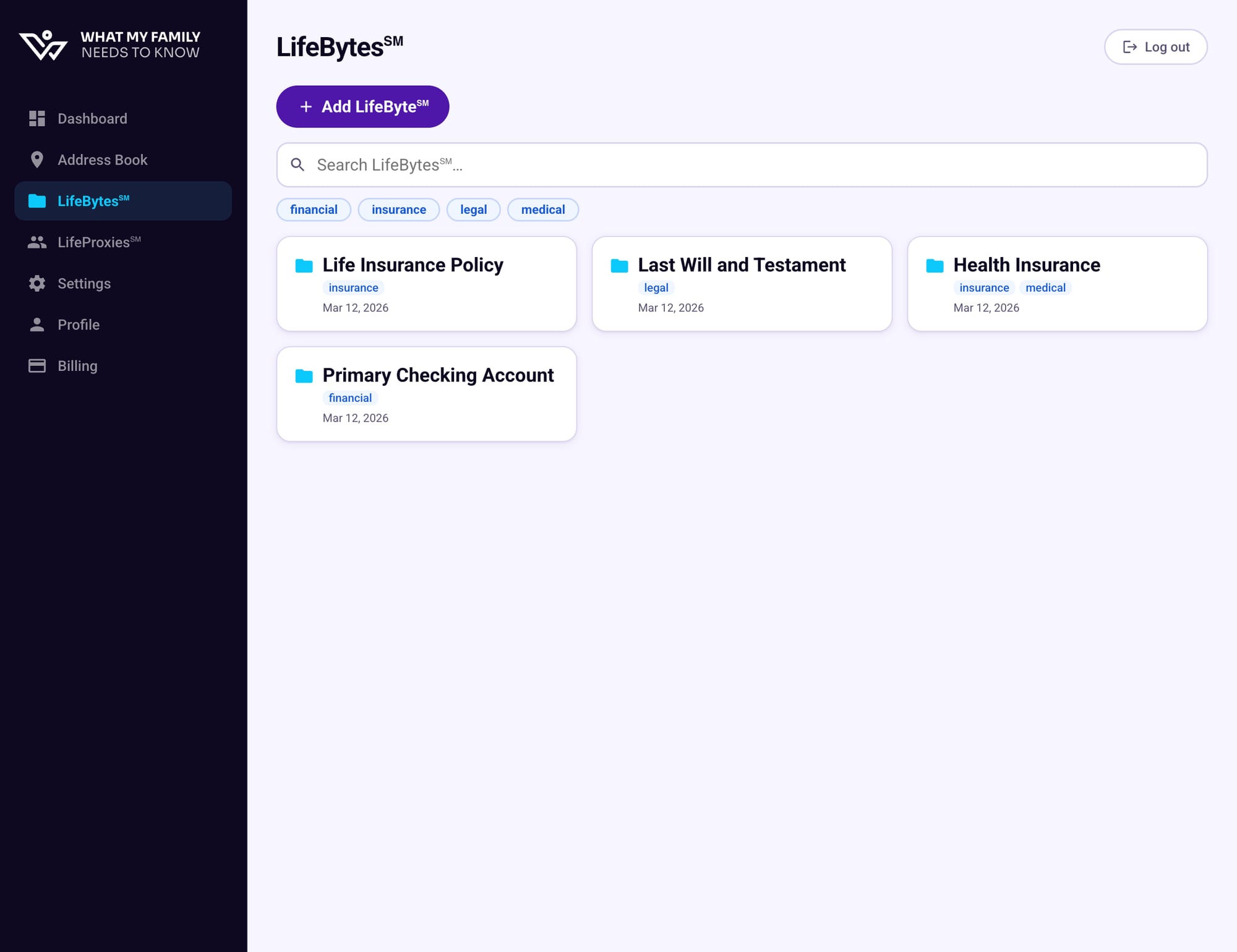
After signing in, you'll land on your Dashboard. Click LifeBytes℠ in the left navigation to see all your existing entries.
2
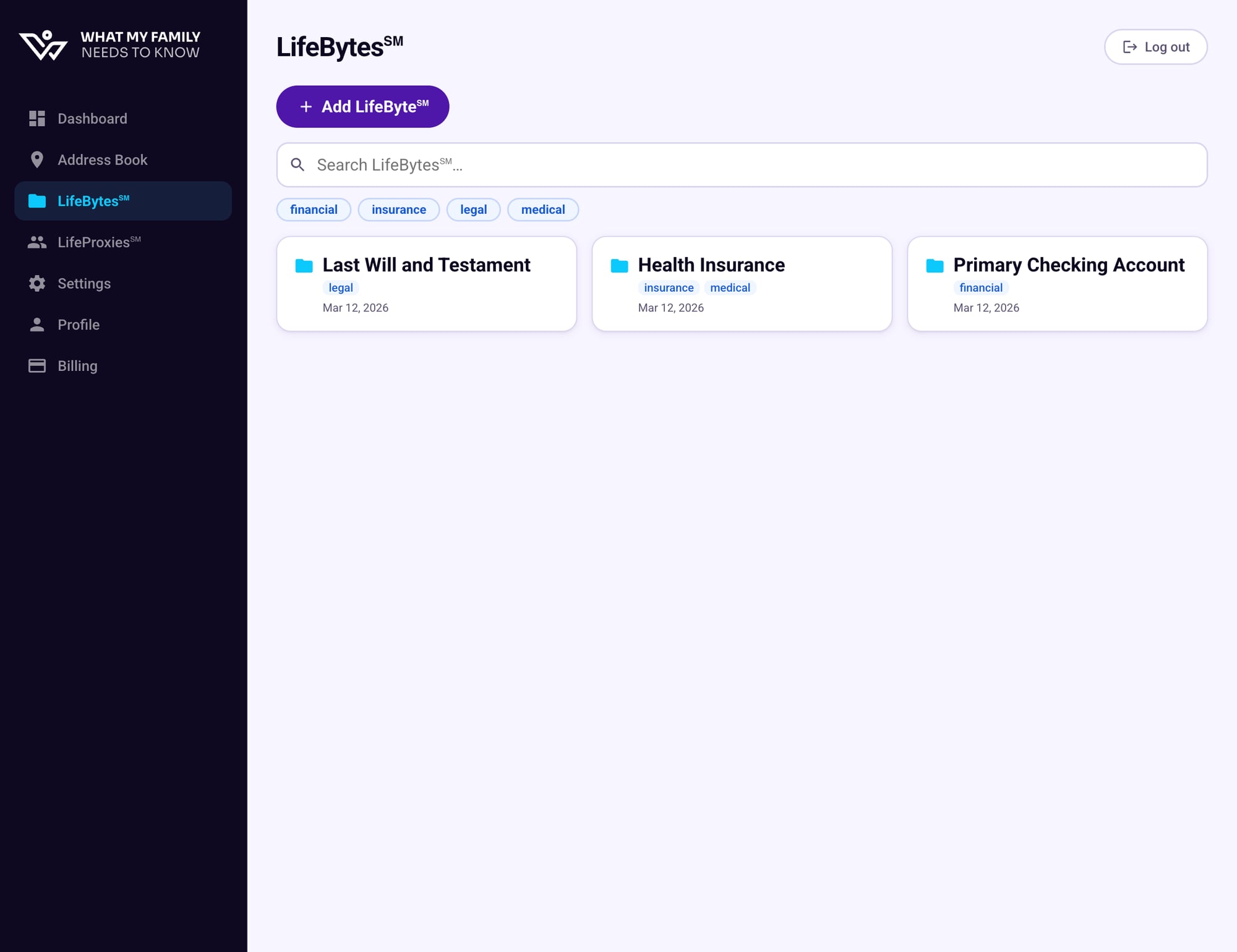
Click "+ Add LifeByte℠"
On the LifeBytes page, click the purple + Add LifeByte℠ button at the top. You'll see any LifeBytes you've already created listed below it.
3
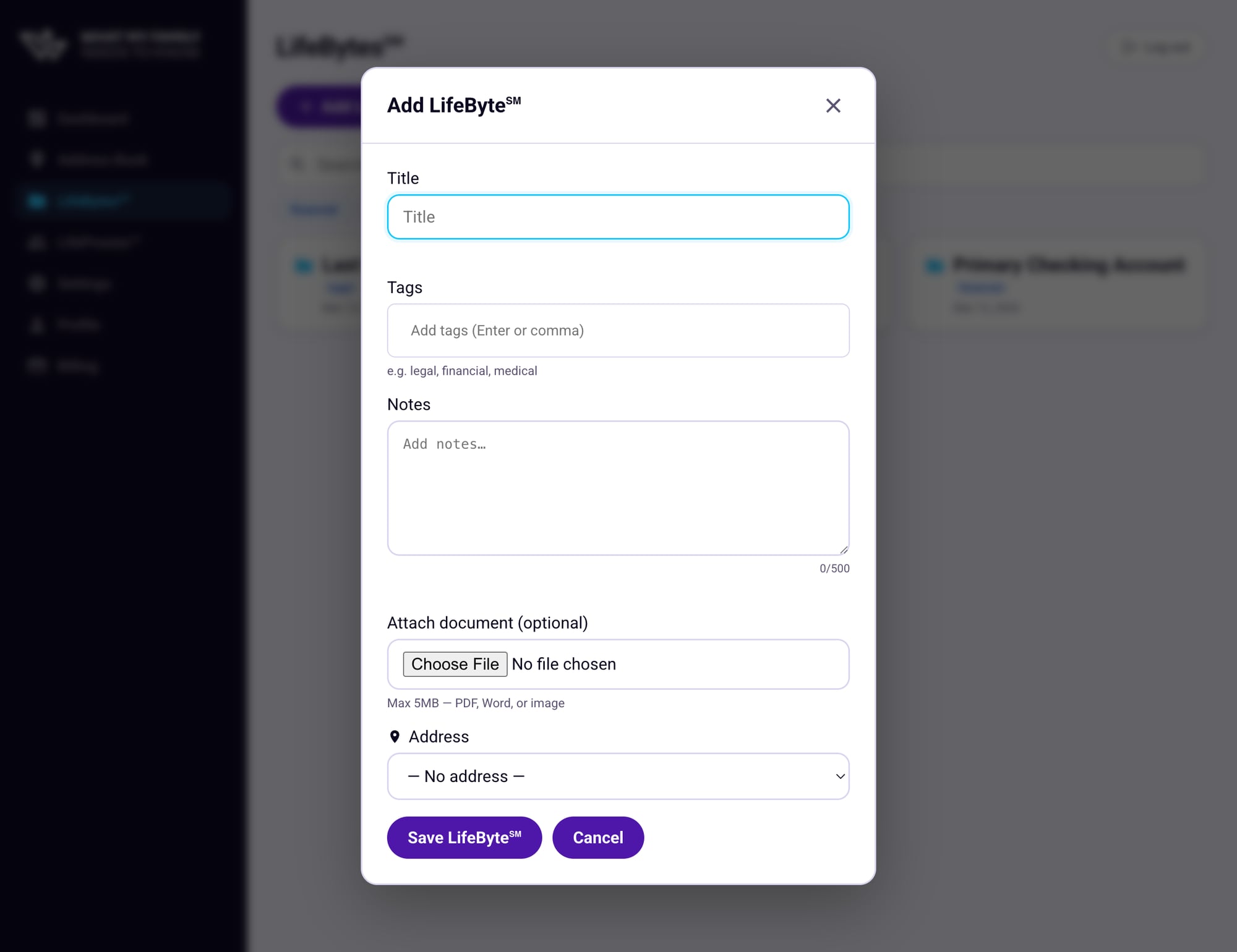
Fill in the details
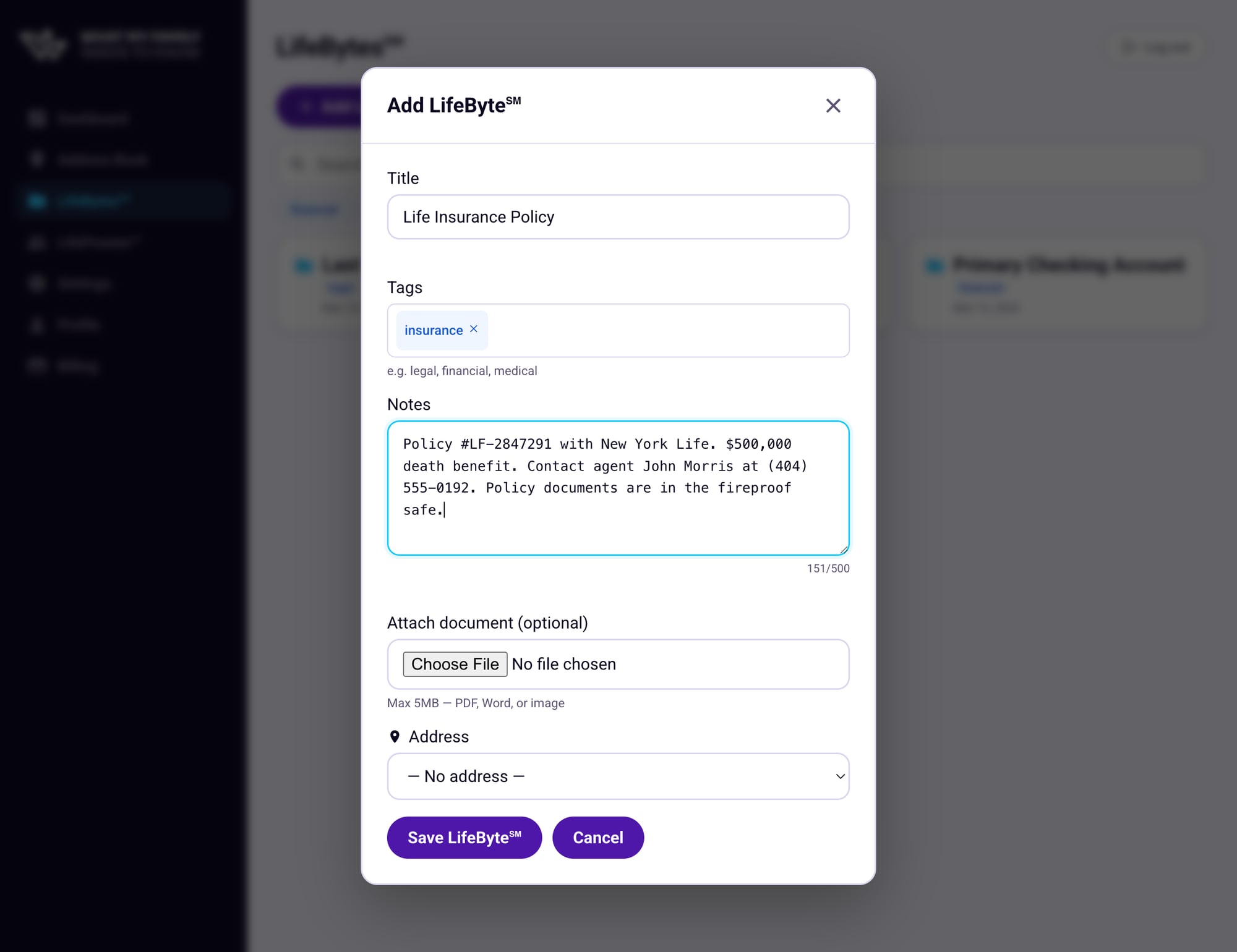
A form will appear with the following fields:
- Title — Give it a clear, recognizable name (e.g. "Life Insurance Policy")
- Tags — Add one or more tags to help organize and filter later (e.g. "insurance", "legal"). Type a tag and press Enter.
- Notes — Write anything your family would need to know. Policy numbers, contact names, where to find documents — the more detail, the better.
- Attach document — Optionally upload a PDF, Word doc, or image (max 5MB).
- Address — Link a physical location from your Address Book if relevant.
There's no wrong way to write your notes. Imagine you're leaving a note for someone who has never seen this before — what would they need to know first?
4
Review your entry
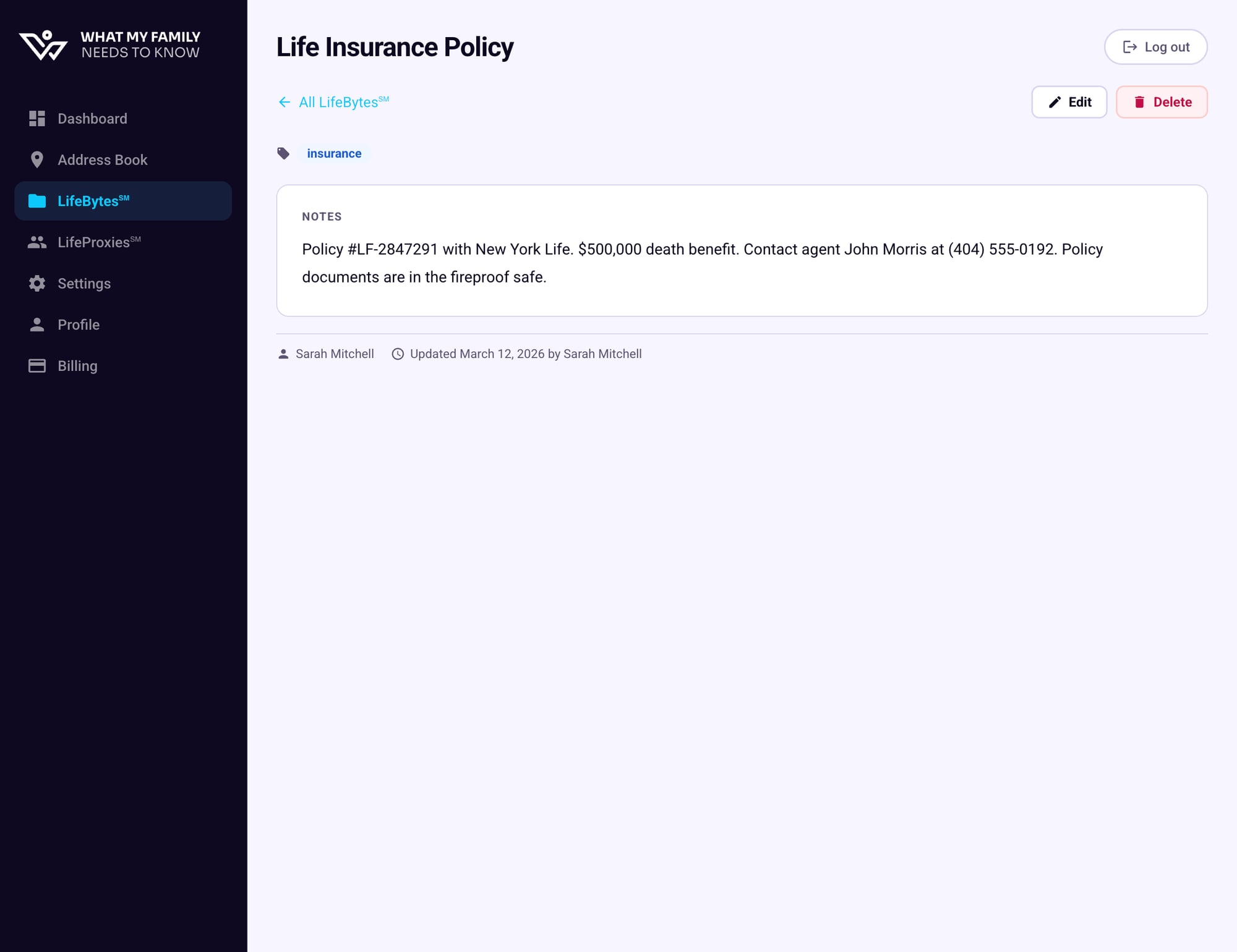
Before saving, take a moment to review what you've written. A filled-in LifeByte might look like this:
Tip: Be specific in your notes
Include policy numbers, contact names, phone numbers, and where physical documents are stored. Vague notes are less useful in a crisis.
5
Click "Save LifeByte℠"
Hit the Save LifeByte℠ button. Your new entry will appear immediately on the LifeBytes page, tagged and ready to find.
6
Open it anytime to view or edit
Click any LifeByte card to open its detail view. From here you can read the full notes, edit the entry, or delete it. Your LifeProxies℠ can also see this information when given access.