1
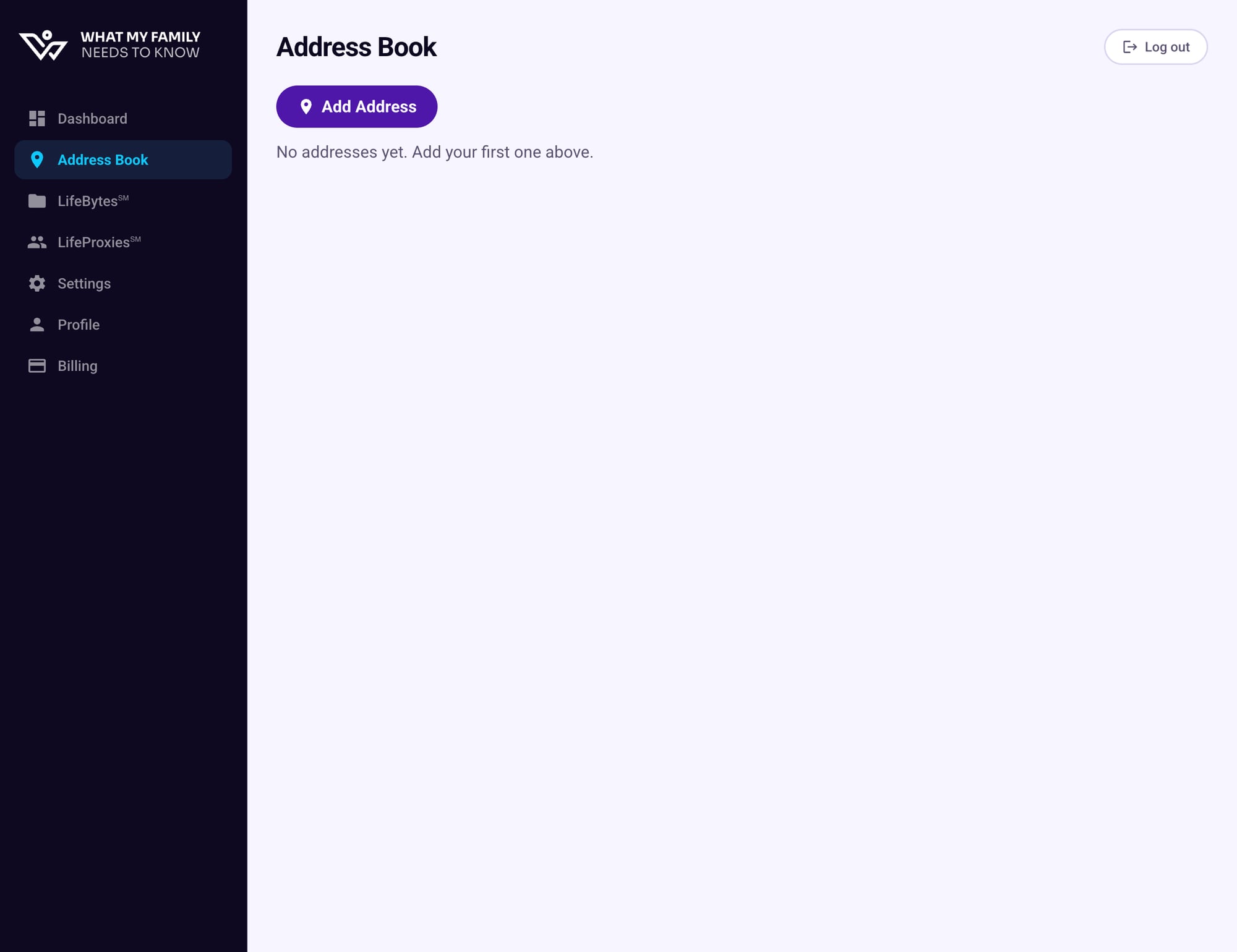
Go to Address Book in the sidebar
Click Address Book in the left navigation. Any saved addresses are listed here.
2
Click "Add Address"
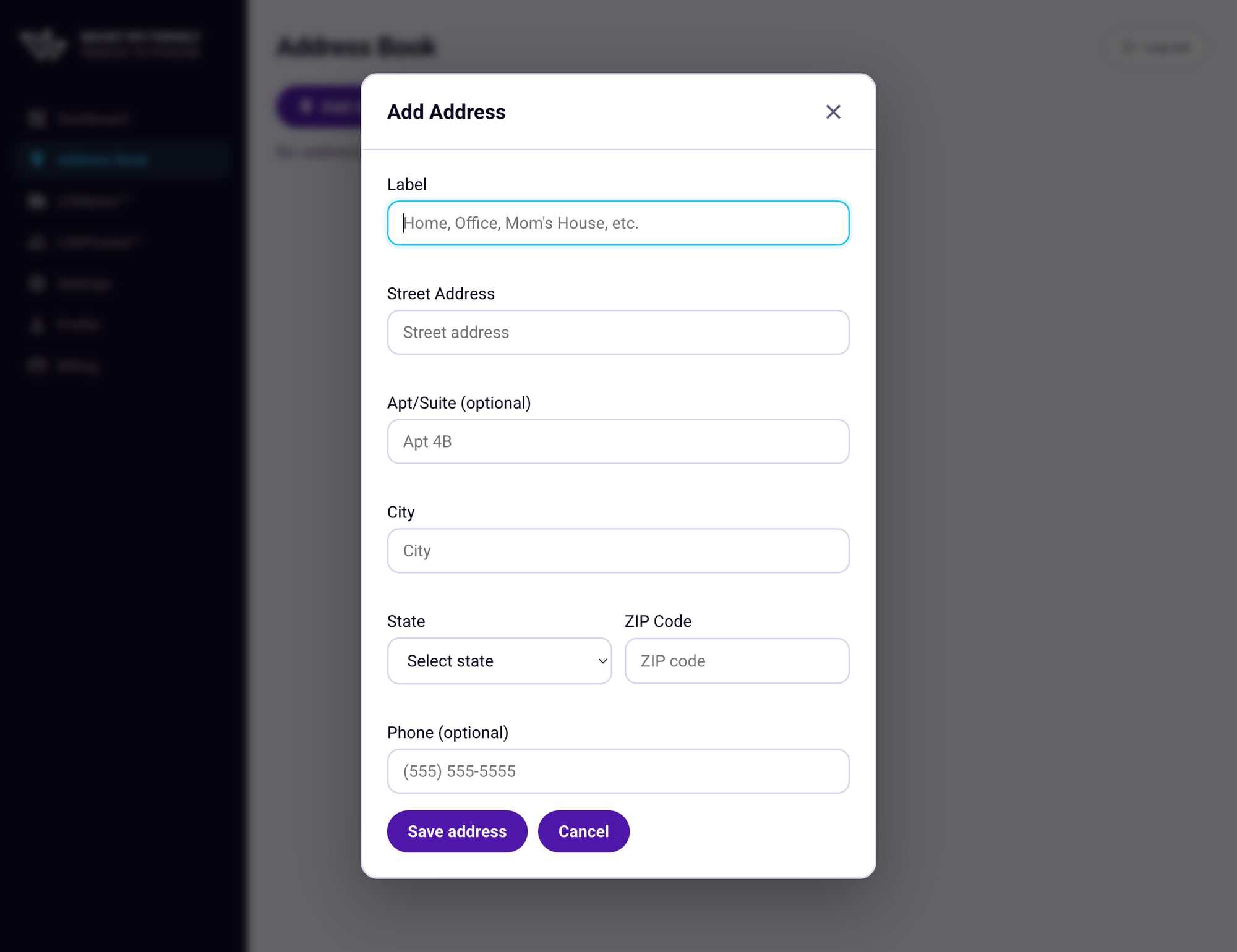
Click the purple Add Address button. A form will appear with fields for the label, street, city, state, ZIP, and an optional phone number.
3
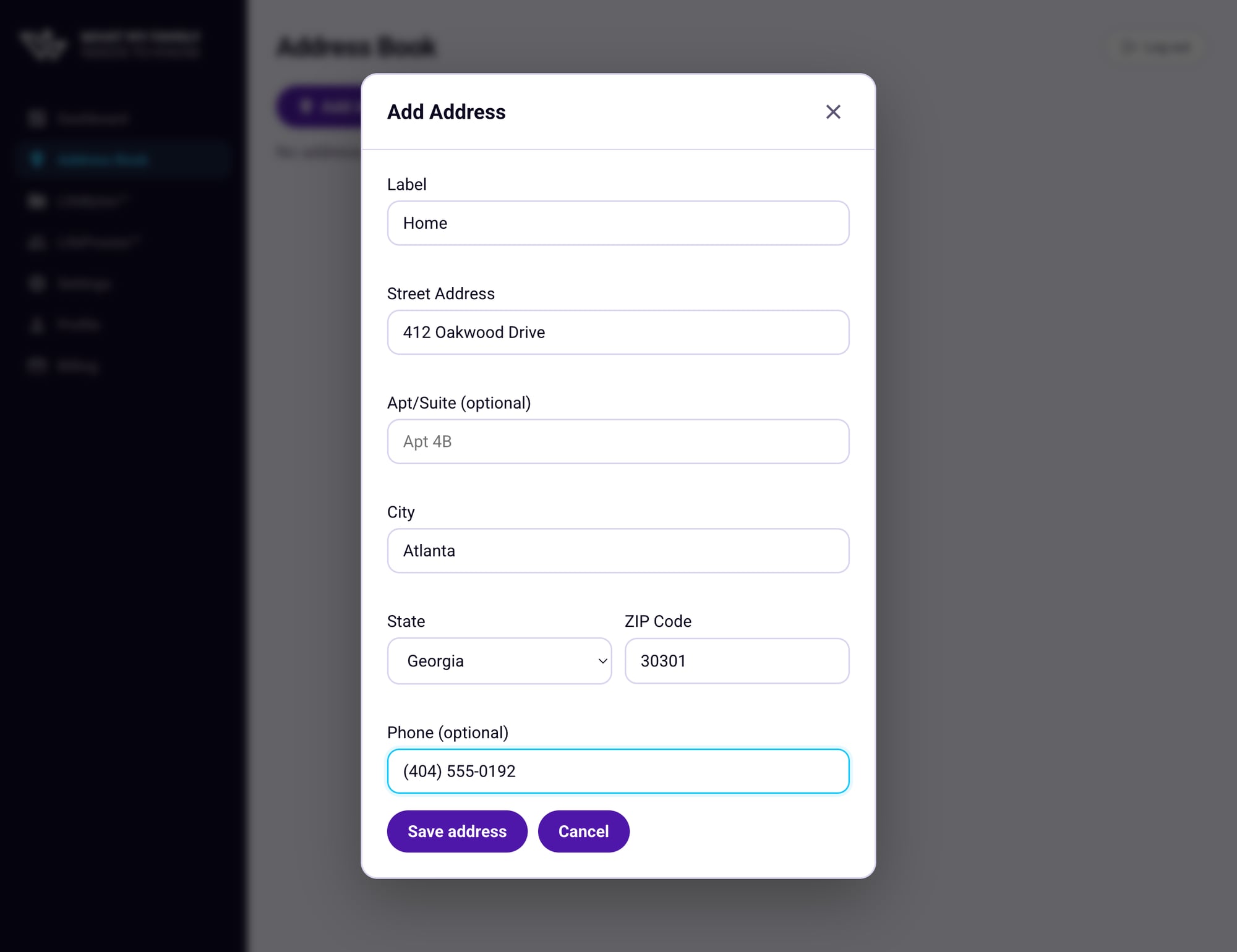
Fill in the details
Complete the form fields:
- Label — A short name to identify this place (e.g. "Home", "Mom's House", "Dr. Torres")
- Street Address — The full street address
- Apt/Suite — Optional unit or suite number
- City, State, ZIP — Complete the location
- Phone — Optional, but useful for offices or contacts
Tip: Use descriptive labels
"Home" is fine, but "Mom's House" or "Estate Attorney" tells your family exactly what they're looking at — especially useful if you have several addresses saved.
4
Click "Save address"
Hit Save address and your new entry will appear in the Address Book immediately. You can edit or delete it at any time.
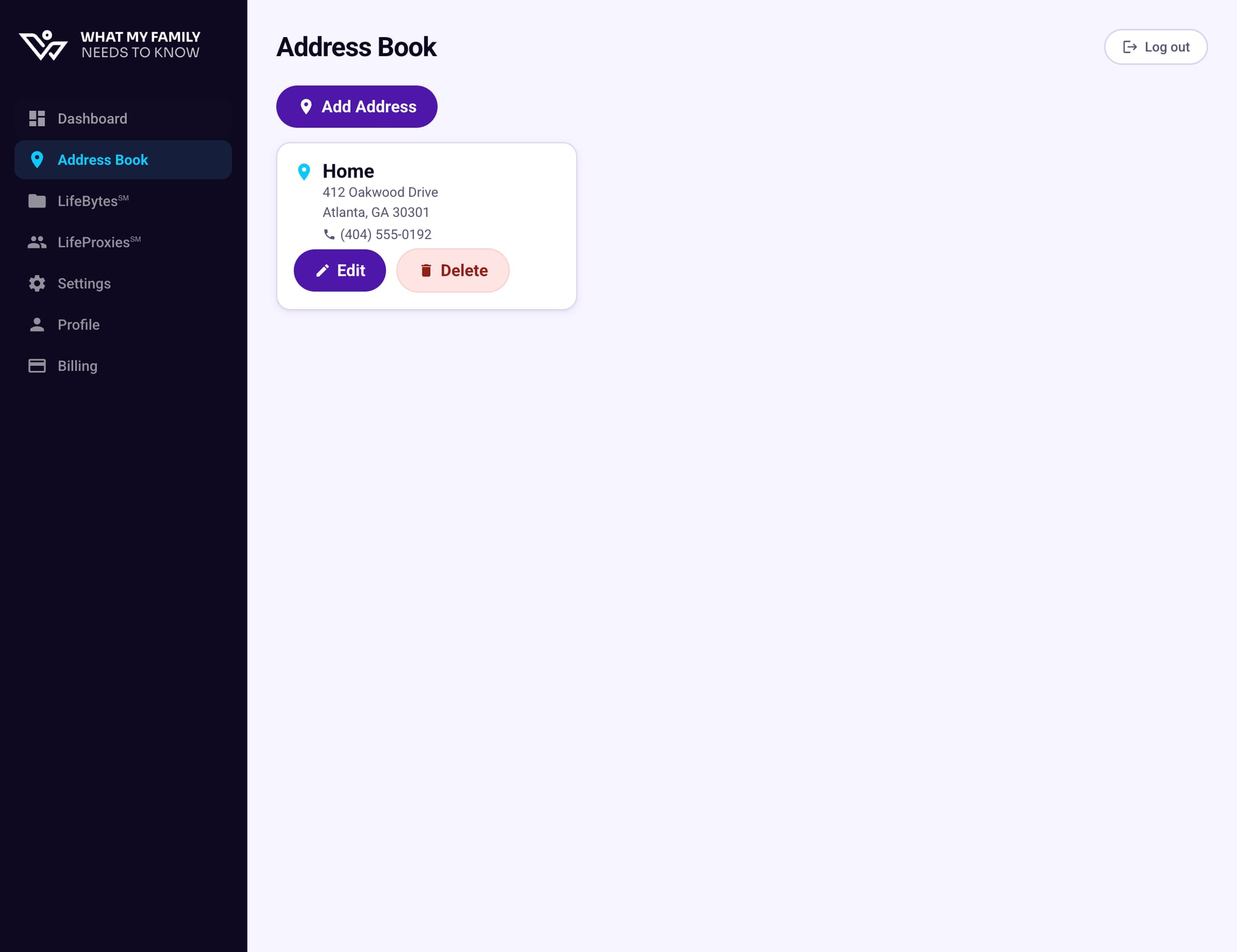
Once an address is saved, you can link it to any LifeByte℠ — so if you mention a doctor or an attorney in your notes, your family can click straight through to their location.